Monday.com to ClickUp migration: import the data, rebuild the system.
ClickUp has a built-in Monday.com importer, and it is better than most teams expect. It moves your items, statuses, people, comments, custom columns and even time tracking. It does not move your formulas, connected boards, mirrors, dependencies or timeline, and its own documentation does not list automations or dashboards at all. Here is what actually transfers, what breaks, and the order we would run the move in.
 By Ishan Vats · Certified ClickUp Consultant, builds and migrates ClickUp workspaces for clients
 Monday.com boarditems, groups, columns
 ClickUp Listone List per board
In a Monday.com to ClickUp migration, ClickUp's native importer moves each Monday board into its own ClickUp List, carrying over items, statuses, assignees, comments, due dates, most custom columns, sub-items (as tasks) and time tracking. It does not import formulas, connected boards, mirror columns, dependencies, timeline, tags, buttons or most attachments, and automations and dashboards are not on its import list, so you rebuild those by hand. Our verdict: use the importer for the data, but design your ClickUp Spaces first, import the status column rather than groups as statuses, and treat every formula, connection and automation as a deliberate rebuild, not a copy.
The verdict
Should you use ClickUp's Monday.com importer, or rebuild from scratch?
Use the importer, but only for the data. Do not let it design your workspace. A Monday.com to ClickUp migration fails when a team copies its boards one to one and expects ClickUp to behave like Monday. It works when you build the ClickUp structure first and pour the data into it.
A disclosure first. I am a Certified ClickUp Consultant and we build and migrate ClickUp workspaces for clients, so I have an obvious interest in you landing on ClickUp. That is also why this page tells you exactly what the importer will not do. The transfer lists below come from ClickUp's own Monday.com import article and monday.com's export documentation, both read on 30 September 2026. The opinions are ours.
Three calls drive the verdict:
- The importer is good at records and bad at logic. Everything that is a value on an item (a name, a status, a date, a number, a person, a comment) comes across. Everything that is a relationship or a rule (a formula, a connected board, a mirror, a dependency, an automation) does not. Plan your effort around that split.
- Import the status column, not the groups. Most Monday boards use groups for phases, months or clients, not workflow stages. Turning them into ClickUp statuses gives you a status list that means nothing. Section 03 shows how to keep the group names anyway.
- The rebuild is the upgrade. The formulas, connections and automations you have to recreate are the parts most worth rethinking. Rebuilding only the ones people actually use is how the new workspace ends up simpler than the old one.
What transfers
What transfers from Monday.com to ClickUp, and what does not?
Items, statuses, people, comments, dates, most custom columns, sub-items and time tracking transfer. Formulas, connected boards, mirrors, dependencies, timeline, tags, buttons, info boxes, file columns and most attachments do not. Automations, integrations, dashboards and board views are not on ClickUp's import list at all.
Here is every Monday.com element a typical board uses, mapped to what the ClickUp importer does with it and what you should do about it.
| Monday.com element | What the ClickUp importer does | What you should do |
|---|---|---|
| Board | Becomes one ClickUp List, in a new or existing Space | Create your Spaces first, import related boards into the same Space |
| Items (pulses) | Imported as tasks, with names, item IDs and date created | Nothing, this is the part that just works |
| Sub-items | Imported into ClickUp as tasks | Check the parent and child structure on a test board before the full import |
| Status column | Can become the List's statuses | Use this option in most cases (section 03) |
| Groups | Can become the List's statuses instead, otherwise not imported | Copy group names into a column first if they carry meaning |
| People and assignees | Kept only for Monday users you map to ClickUp users | Invite everyone to ClickUp before you import |
| Updates and comments | Imported as comments | Nothing |
| Text, numbers, dropdowns, dates, checkboxes, email, phone, links, rating, progress | Imported as custom fields | Delete the fields nobody fills in after import |
| Color picker, location | Imported as text | Convert to dropdown or location fields if you filter on them |
| Time tracking | Imported | Spot-check totals on one board |
| Formula columns | Not imported | Rebuild as ClickUp formula fields |
| Connected boards and mirrors | Not imported | Rebuild as relationship and rollup fields |
| Dependencies and timeline | Not imported | Re-link dependencies on active projects only |
| Tags, buttons, info boxes, linked tasks | Not imported | Replace tags with a dropdown or ClickUp tags where needed |
| Files and attachments | Generally not imported, file columns not supported | Keep monday's full account export as your file archive |
| Automations and integrations | Not on the import list | Rebuild the ones people use, in ClickUp or in n8n or Make |
| Dashboards and board views | Not on the import list | Rebuild from the questions each dashboard answered |
Two details from ClickUp's article are easy to miss. First, the connection uses a Monday.com API token. If you are not a Monday admin you can still import, but only the boards you personally can see, so have an admin run the real import. Second, import speed is set by Monday.com's rate limits: ClickUp says starting takes 2 to 10 minutes and the import itself can run from a minute to a few hours depending on how much data you have.
The one choice that matters
Should Monday groups become ClickUp statuses?
Usually no. Pick "Status column as statuses" unless your groups are literally your workflow stages. ClickUp statuses drive views, automations and reporting, so they should describe where work is, not which month or client it belongs to.
The importer asks you to choose, per board, where the ClickUp List's statuses come from:
- Groups as statuses. Your Monday group names become the List's statuses. This is right only when your groups read like a pipeline, for example "Backlog, In progress, Review, Done".
- Status column as statuses. The board's default status column becomes the List's statuses. ClickUp's article is explicit that with this option your group names are not imported.
That second line is the trap. Plenty of Monday boards group items by client, by week or by quarter, and that grouping is information your team relies on. If you choose the status column, the grouping silently disappears.
The fix takes ten minutes per board. Before you import, add a dropdown or text column on the Monday board called something like "Group", select all items in each group with Monday's batch actions, and set the column to the group's name. That column then imports as a ClickUp custom field, and you can group, filter and sort by it in any ClickUp view. You keep the meaning of the groups and get a clean status list.
What you rebuild by hand
What breaks when you move from Monday.com to ClickUp?
Five things break in every Monday.com to ClickUp migration. None of them is a reason not to move. All of them need an owner and a line in the plan.
1. Automations and integrations
Monday automations ("when status changes to Done, notify someone") are not on the import list. List every active automation before you move, cut the ones nobody would miss, and rebuild the rest as ClickUp automations. Anything that crosses tools, such as CRM updates, invoicing or client emails, is usually sturdier in n8n or Make than inside either PM tool.
2. Connected boards and mirrors
These are how Monday links a project to a client or a task to a deal. They do not import. Rebuild them as ClickUp relationship fields, and use rollups where you used mirrors to show a value from the linked record.
3. Formula columns
Formulas arrive as nothing. Export the board to Excel first so you keep the calculated values, then rebuild the formulas that feed a decision as ClickUp formula fields. Most boards have a few formulas nobody reads. Leave those behind.
4. Dependencies, timeline and dashboards
Dependencies and timeline columns do not import, and dashboards and board views are not on the list. Re-link dependencies only on active projects, then rebuild each dashboard from the question it answered, not from its widgets.
5. Files and attachments
ClickUp says attachments generally are not supported and file columns do not import. A Monday admin can download the whole account as a zip that includes boards and files. Keep that as your archive and re-attach only the files active work still needs.
The migration plan
How do you migrate from Monday.com to ClickUp step by step?
Back up, design, prepare, test one board, import, then rebuild the logic and run both tools side by side for a week. For a team of 10 to 50 people that is about three weeks, the same rhythm we lay out in our Asana to ClickUp migration guide.
- Audit and label every board. Mark each board active, reference or archive. Only active boards go through the importer. Reference boards live on in the export. Archived boards stay behind.
- Back up before you touch anything. Have a Monday admin download the full account export, which includes boards and files, then export each active board to Excel with updates and sub-items. Monday caps a board export at 100,000 items, exports table views only, and does not export sub-item updates, so the account export is your real safety net.
- Design the ClickUp structure first. ClickUp's own article tells you to create your Spaces before importing. Decide your Spaces, Folders and Lists, your statuses and the handful of custom fields every List shares, before any data arrives.
- Prepare the Monday boards. Copy group names into a column where they matter, tidy the status column so every value is one you want in ClickUp, and delete columns nobody fills in. Invite every user to ClickUp so assignees map cleanly.
- Import one test board, then the rest. Connect with an admin's Monday API token, import a single representative board, and check sub-items, custom fields, time tracking and assignees. When it looks right, import the remaining active boards into the Spaces you designed.
- Rebuild the logic, then cut over. Recreate the formulas, relationships, automations and dashboards on your priced list, run ClickUp and Monday in parallel for one week, then set Monday to read-only for a month before you cancel.
If you want the ClickUp structure designed and the move run for you, that is exactly what our ClickUp implementation service does, and the workspace architecture behind it sits in our Foundation stage.
FAQ
Questions teams ask before moving from Monday.com to ClickUp
Can ClickUp import directly from Monday.com?
Does the ClickUp importer bring over Monday.com automations?
What happens to Monday.com groups and sub-items in ClickUp?
Do formula columns and connected boards transfer to ClickUp?
How long does a Monday.com to ClickUp migration take?
Ishan Vats
Founder, IV Consulting · Certified ClickUp Consultant
I build workspaces, automations, and production AI agents for teams from startup to enterprise. 150+ ops transformations over 10+ years. I design and migrate ClickUp workspaces for a living, which is why this guide spends more time on what the importer will not do than on what it will.
Price your automations →Keep reading
Related guides and work
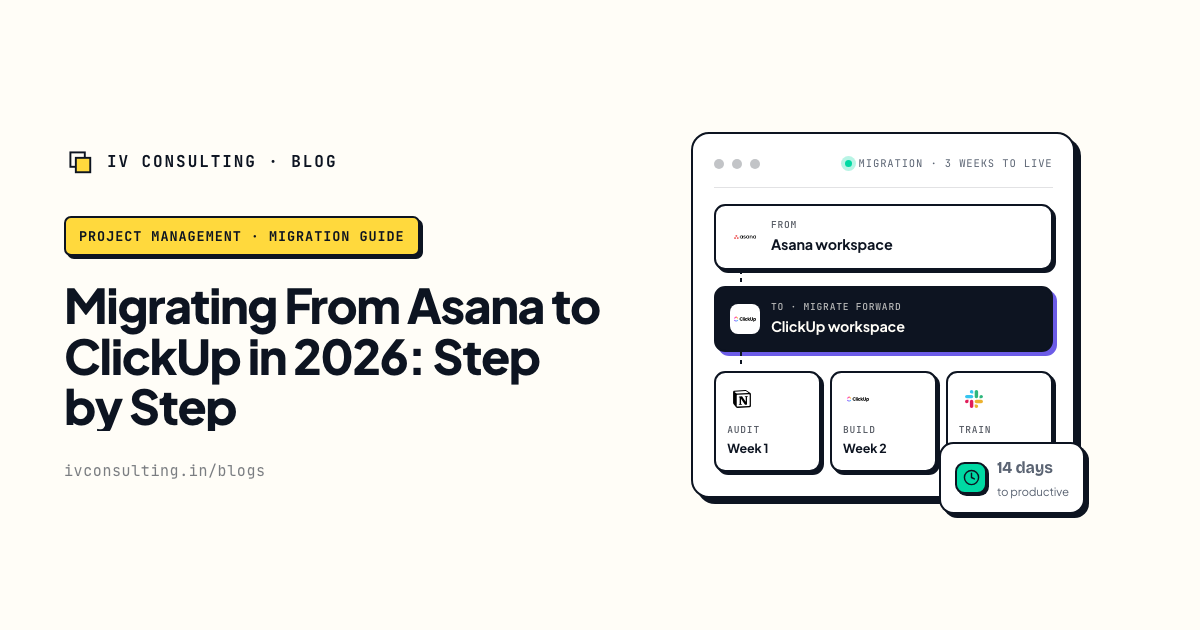
Asana to ClickUp migration guide
The three-week, three-phase plan for the other common move into ClickUp.
Read the guide →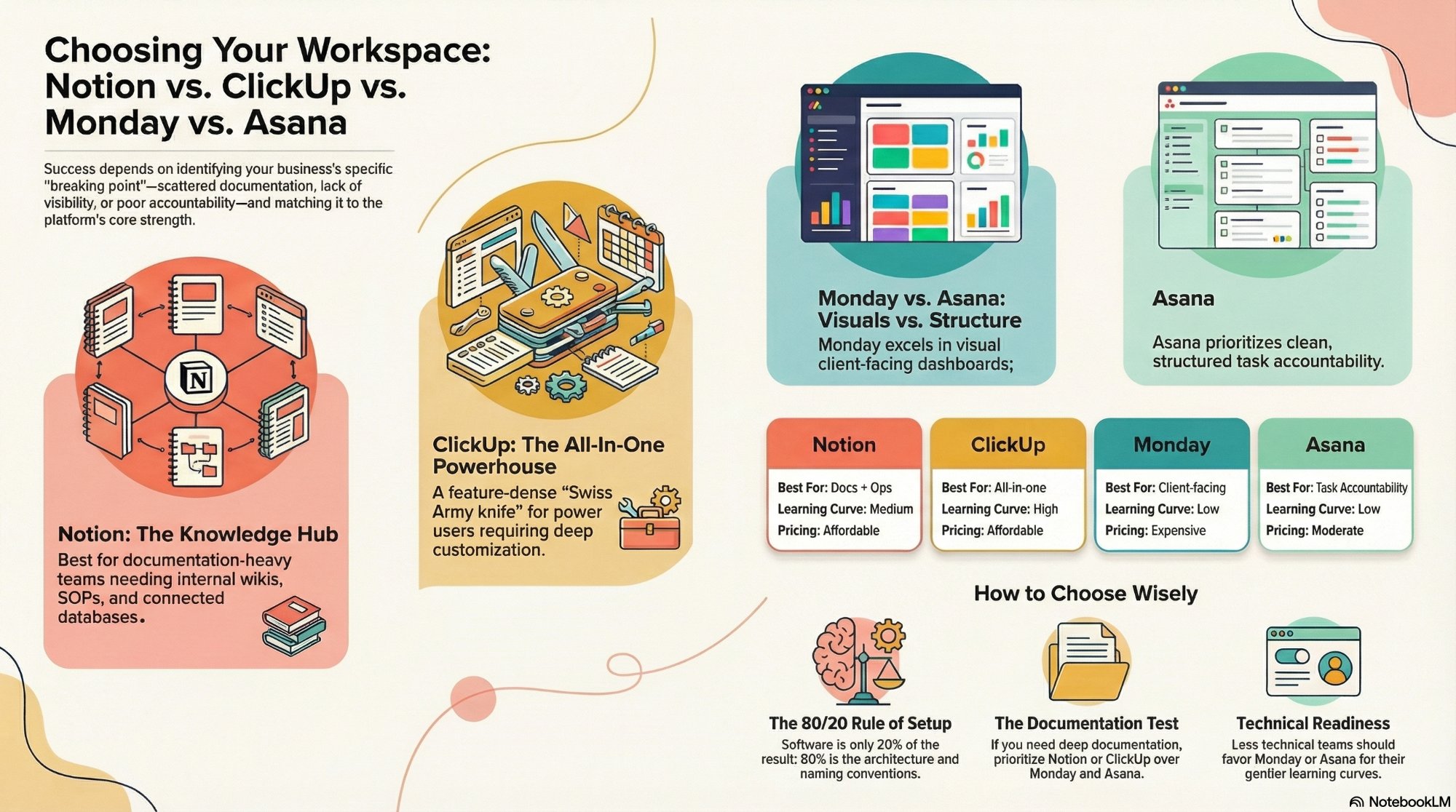
Notion vs ClickUp vs Monday vs Asana
Our 2026 pick between the four, before you commit to a move.
Read the comparison →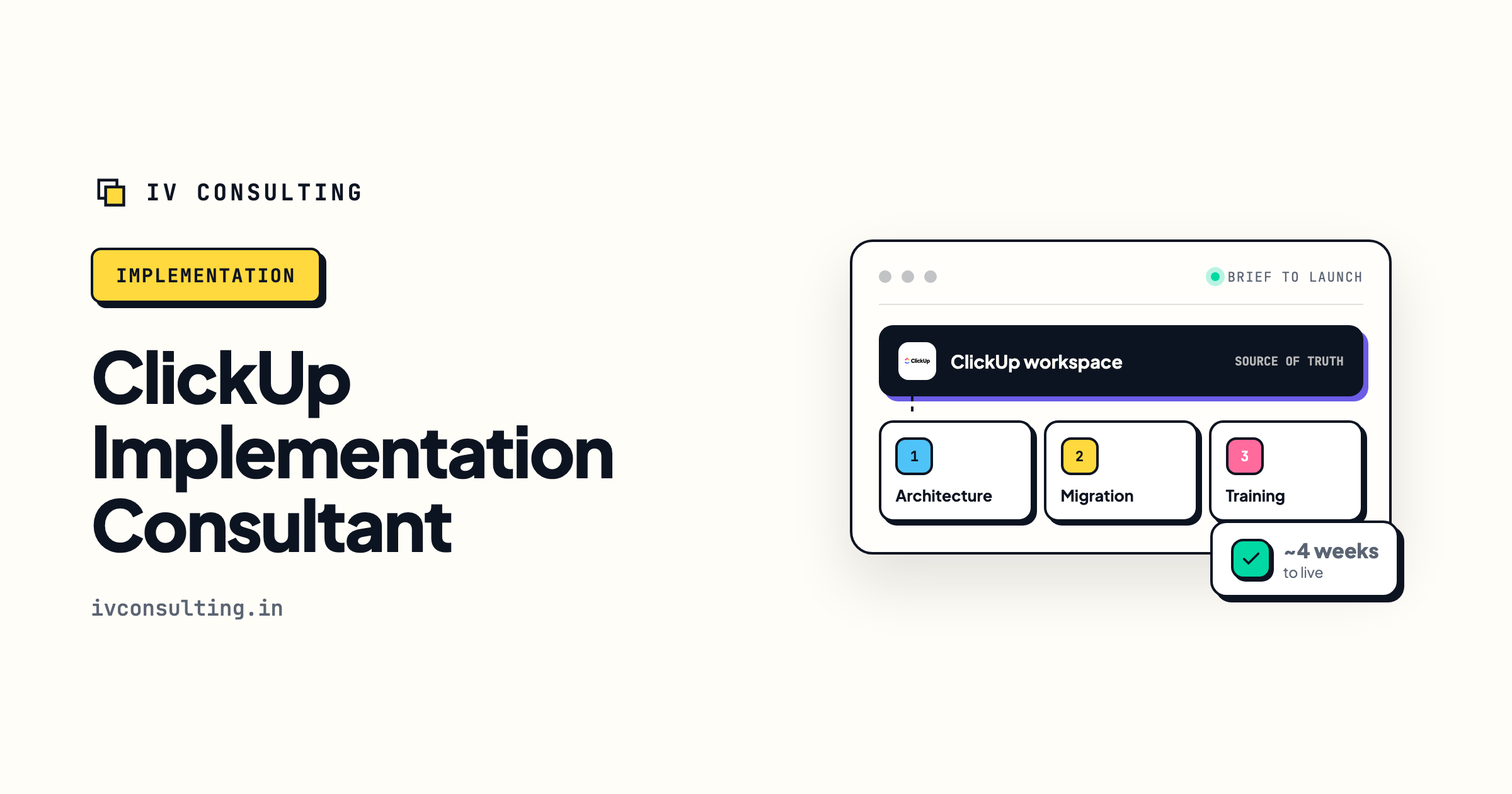
ClickUp implementation
Architecture, migration and adoption, live in about four weeks.
See the service →Moving off Monday.com and want it done once?
Book a free 30-minute strategy call. We will look at your boards, your automations and your team size, and tell you what to import, what to rebuild and what to leave behind. If the importer alone is enough, we will say so.
Book a Free Strategy Call →Free 30-minute call. Honest take, even if that means "you do not need us yet."