Migrating from Asana to ClickUp in 2026: the step by step guide
The decision is made. Here is the honest, three phase migration that moves your team without losing three weeks of productivity.
 By Ishan Vats · Certified ClickUp Consultant · builds ClickUp systems for 150+ teams
Some links below are affiliate links. If you buy through them we may earn a commission, at no extra cost to you.
 FromAsana workspace
 To · Migrate forwardClickUp workspace
 AuditWeek 1
BuildWeek 2
AuditWeek 1
BuildWeek 2
 TrainWeek 3
A well-run Asana to ClickUp migration takes three weeks and three phases: audit what you have (Week 1), build the ClickUp structure and run a pilot (Week 2), then migrate and train (Week 3). The critical rule is migrate forward, not backward. Import only active projects, archive everything else, and give your team a clean ClickUp start date. Teams that try to migrate everything stall. Teams that move only what matters are productive in ClickUp within 14 days.
The decision
Why teams switch from Asana to ClickUp in 2026
The moment teams decide to leave Asana is rarely a dramatic one. It is usually quiet, a Monday morning when someone realises they have been paying for a tool that stopped growing with them. The reporting is too thin. The automations hit a ceiling. The custom fields are rigid. A competitor just showed them a ClickUp dashboard that does in one screen what takes three Asana reports to approximate.
Sometimes the decision is not yours at all: teams arriving from the Project Online retirement are running this same playbook against a vendor deadline rather than a preference. Coda teams rethinking their tool after the rename to Superhuman Docs often land here too, so check first whether you need to move at all. Whatever brought you here, the decision is made. The question now is how to migrate without losing three weeks of productivity, alienating half the team, and rebuilding the same broken habits in a shinier interface. This is the honest version of that migration, not the marketing version. The version that accounts for what actually breaks, what is not worth moving, and how to make ClickUp feel like an upgrade rather than an imposition.
Understanding why you are switching helps you build the ClickUp setup that solves the specific problems Asana could not. Five reasons come up again and again. If ClickUp is not yet a settled decision, our Notion vs ClickUp vs Monday vs Asana verdict makes the call between the four before you commit to a migration you only want to do once.
- Reporting and dashboards. ClickUp Dashboards pull data from any combination of Spaces, Folders, and Lists into one view, with widgets for task counts, time estimates, burndown, and portfolio-level status. This is the single most cited reason for switching.
- Automation depth. Asana rules are limited. ClickUp's automation engine supports conditional logic, multi-step sequences, and cross-list triggers, which teams need exactly when they are scaling fastest.
- Hierarchy flexibility. ClickUp's five-level hierarchy (Workspace, Space, Folder, List, Task) plus nested subtasks gives agencies and multi-client businesses the architectural freedom Asana's fixed structure cannot. If you run an agency, we lay out how to set up that hierarchy for client work.
- Views. ClickUp offers 15 views including List, Board, Calendar, Gantt, Timeline, Workload, and Map. Asana centres on Board and List, with Timeline on paid plans.
- Price to feature ratio. At comparable feature sets, ClickUp is meaningfully cheaper than Asana for teams of 10 or more, often saving a 25-person team several thousand dollars a year.
Translate first
The Asana to ClickUp terminology map
The first thing that confuses teams making this switch is the terminology mismatch. Here is the direct translation.
| Asana | ClickUp equivalent |
|---|---|
| Organisation | Workspace |
| Team | Space |
| Project | List (or Folder containing Lists) |
| Section | List within a Folder, or grouped tasks |
| Custom Fields | Custom Fields (more types available) |
| Rules | Automations |
| Portfolio | Dashboard or Portfolio view |
| Inbox | Notifications plus Inbox |
The most important translation: in Asana a Project is the primary unit of organisation. In ClickUp a List plays the same role, but you will likely use Lists differently. Asana Projects tend to be broad. ClickUp Lists tend to be more specific, with Folders grouping related Lists. A one-to-one migration of Asana Projects to ClickUp Lists often produces a flat structure that misses ClickUp's hierarchical strength.
Week 1
Phase 1: Audit and decide
Do not touch ClickUp yet. Week 1 is entirely about understanding what you have in Asana and making deliberate decisions about what moves.
Export everything from Asana
Go to the Asana Admin Console and export your full workspace as a CSV. This gives you a complete record of every project, task, subtask, assignee, due date, and custom field across the organisation. Save this export before you do anything else. It is your safety net.
Categorise every Asana project
Open the export and apply one of four labels to every project:
- Migrate: active project with incomplete tasks, active assignees, and upcoming deadlines.
- Reference: completed project whose data you may need to look up but do not need in your active workflow.
- Archive: completed project with no future reference value, last updated more than six months ago.
- Rebuild: active but too complex or messy to migrate cleanly, better rebuilt fresh in ClickUp.
For most teams the breakdown is roughly 20 to 30% Migrate, 20 to 30% Reference, 40 to 50% Archive, and 5 to 10% Rebuild. If you mark more than 50% as Migrate, you are probably being too conservative with Archive. A task untouched for 90 days in Asana will not suddenly become active when it moves to ClickUp.
Audit your custom fields and automations
List every custom field in your Asana workspace. For each, ask: is this field filled in on more than 70% of the tasks that should have it? If not, the field was aspirational rather than operational. Do not migrate aspirational fields. Build only the fields you will actually fill in.
Then list every active Asana rule. For each, note what triggers it, what action it takes, and whether it is genuinely saving time or was set up speculatively. Only migrate automations you can confirm are actively useful. If you also lean on Asana AI Teammates, price the ClickUp equivalent before you commit, because the two bill agents very differently, as our Asana vs ClickUp vs monday AI agent cost breakdown shows.
Week 2
Phase 2: Build and pilot
Week 2 is when you build the ClickUp workspace, but you do not migrate anything yet. You build, test with a small group, and refine before the full team touches it.
Design your ClickUp architecture
Use your audit to design a deliberate hierarchy. The standard architecture for teams of 10 to 50 people:
- One Space per major operating context (Client Work, Internal Ops, New Business, Leadership).
- One Folder per major ongoing workstream or client within each Space.
- Three to five standard Lists within each Folder (Active, Backlog, Reference, Archive).
- Consistent custom fields across all Lists within a Space.
Resist the urge to replicate your Asana structure. This is the single most common mistake in these migrations. Your Asana structure was built around Asana's constraints. Treat this as a redesign, not a copy.
Build your custom field set at the Space level
Build only the fields that passed the 70% fill rate test. Add ClickUp-specific fields that are genuinely useful: Estimated Hours, Sprint Week, and a Blocker field if your workflow surfaces blockers.
Set custom fields at the Space level so they cascade to all Folders and Lists within that Space. This is what makes cross-list views and reports reliable. Setting fields at the List level is one of the five errors that break migrations later.
Build your intake automation and pilot it
Before migrating any tasks, build the intake automation that replaces manual task creation. Typically a ClickUp Form with required fields (requester, project, deliverable type, deadline, description) that creates a task in the correct List with the right custom fields pre-populated and the right person notified. Building this first means new work enters through a clean, consistent channel from day one.
Then pilot. Select two or three operationally central people, a project manager, a team lead, and an account manager. Give them the new workspace and ask them to run real work through it for three days while keeping Asana in parallel. Gather feedback on exactly three questions: what was confusing, what was missing, what was better than Asana. Refine before opening it to everyone.
Week 3
Phase 3: Migrate and train
Week 3 is go-live week. It is also the week that determines whether the migration sticks or collapses back into Asana.
Import active projects with ClickUp's Asana importer
ClickUp has a native Asana import tool. Go to Settings, then Import and Export, then Import from Asana. Authenticate with Asana and select only the projects you marked as Migrate. Do not import everything.
The importer transfers tasks, subtasks, assignees, due dates, comments, and attachments. It does not transfer Asana custom fields into ClickUp custom fields automatically, so plan 60 to 90 minutes for post-import field mapping. For projects marked Rebuild, do not import them. Create fresh Lists from your task templates instead. Importing mess is not migration, it is debt transfer. Coming from Monday.com instead? That importer drops formulas, connected boards and dependencies, so read our Monday.com to ClickUp migration guide before you start.
Map and clean the imported data
Spend 60 to 90 minutes on data hygiene. Assign imported tasks to the correct ClickUp custom fields. Remove duplicate tasks that appear from Asana's section structure importing as separate items. Update statuses to match your ClickUp status set. Assign any tasks that came in unassigned.
This is the step most teams skip and later regret. Clean, consistent data from day one builds trust with the team. Imported chaos in half the fields destroys that trust in the first week.
Run the training session in 45 minutes, no more
Training should take no more than 45 minutes for a team of 20. The agenda: 15 minutes on workspace structure (where things live and why), 15 minutes on daily workflow (how to find your tasks, update status, log time), and 15 minutes on the intake form. Do not try to teach everything. Teach the three things people will do every single day.
Record the session, post it in your team Slack channel, and pin the link in your ClickUp workspace Chat. Most questions in the first two weeks are the same four questions, and a searchable recording answers them without a second training session.
Avoid these
The five things that break in every migration
1. Notification overload
ClickUp's defaults send far more notifications than Asana, which makes week one feel chaotic. Fix it on day one: in Settings, then Notifications, keep only assigned to me, due today, mentioned, and status changed on watched tasks. Turn off all activity on tasks you do not watch, email digests, and most mobile push.
2. Duplicate tasks from import
Asana's section structure can create duplicates during import. Search ClickUp for tasks with identical names within the first 48 hours and resolve them before the team starts. Unresolved duplicates become a trust problem fast.
3. The team reverts to Asana
The most common and most dangerous failure. Set Asana to read-only on go-live day, not gradually. As long as Asana is writable it is a viable escape route. Remove the escape route on day one.
4. Custom field inconsistency
List-level fields create different fields on different Lists, which breaks cross-list reporting. Set all fields at the Space level and use the Required toggle on fields your reporting depends on to enforce data quality.
5. No owner after Week 3
The owner refocuses on their normal workload and the workspace degrades. Schedule a 30-day post-go-live review and keep one named ClickUp owner for at least 90 days. Migrations succeed or fail in the 30 to 90 day window, not the first three weeks.
FAQ
Questions teams ask before they migrate
How long does an Asana to ClickUp migration take?
Should I migrate everything from Asana to ClickUp?
Does ClickUp have a native Asana importer?
What is the most common reason migrations fail?
List level or Space level custom fields in ClickUp?
Can IV Consulting run the migration for my team?
Ishan Vats
Founder, IV Consulting · Certified ClickUp Consultant
I build ClickUp systems and operating models for teams from startup to enterprise. 150+ ops transformations over 10+ years. If you want yours mapped and built right, I'll do it with you on a free call.
Book a free strategy call →Keep reading
Related guides and work
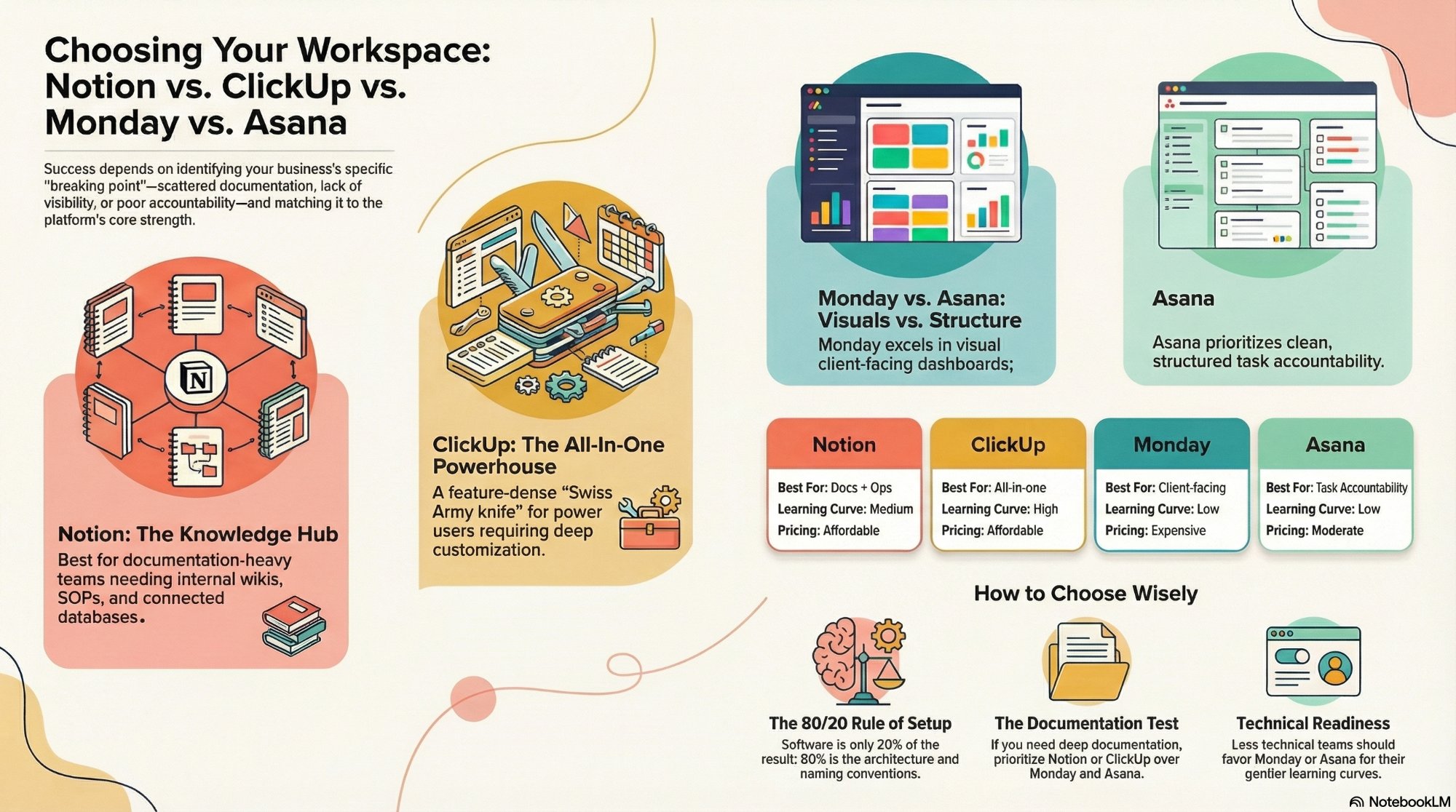
Notion vs ClickUp vs Monday vs Asana
The head to head that helps you pick the right operating tool before you migrate.
Read the comparison →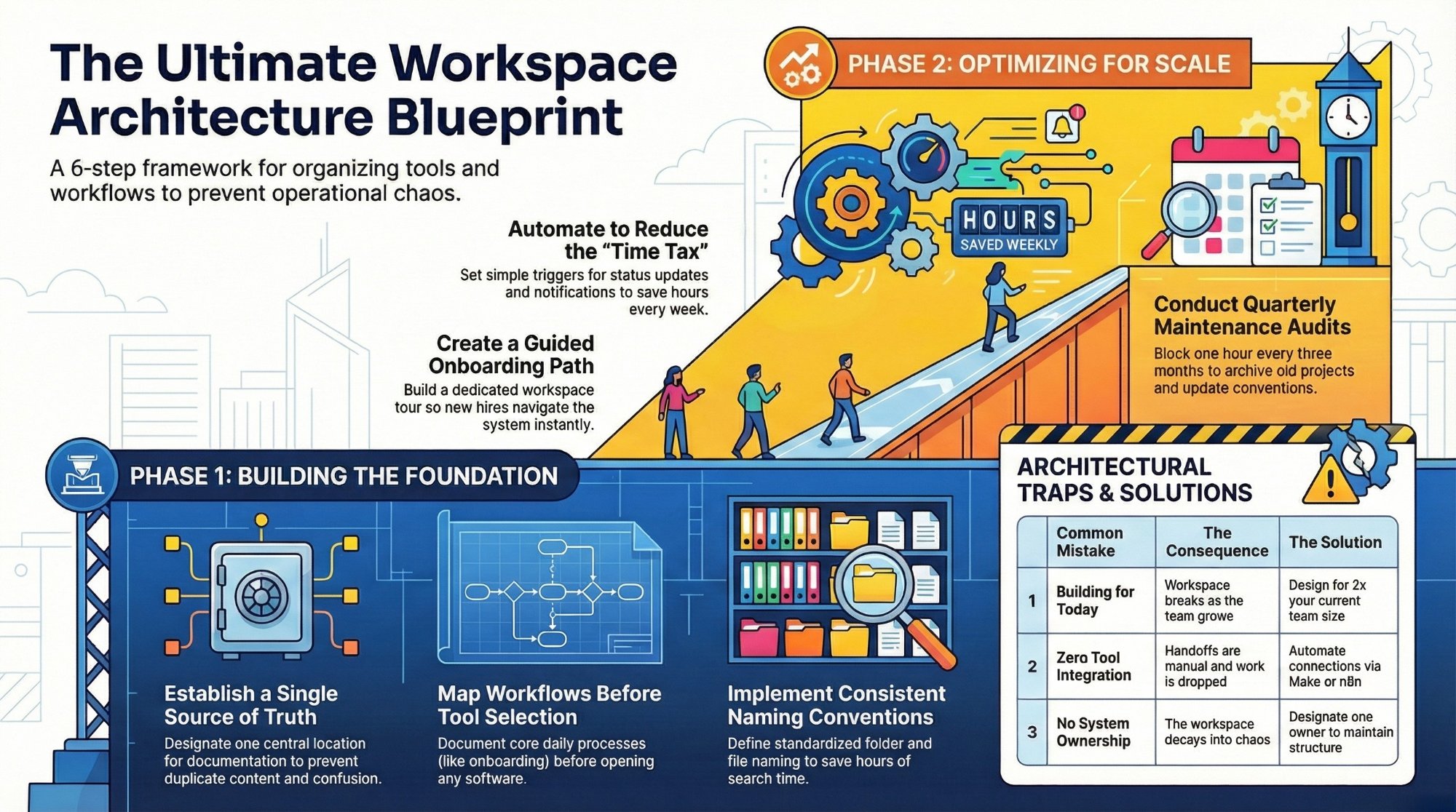
The ultimate workspace architecture checklist
How to design a Space, Folder, and List structure that scales without chaos.
Read the checklist →
The Foundation stage, built for you
We design and build your ClickUp or Notion operating system end to end.
See the offer →Want your automation stack built for you?
Book a free 30-minute strategy call. We will map your highest-ROI workflows and give you a build roadmap on the spot. If we are not the right team for you, we will say so and point you somewhere better.
Book a Free Strategy Call →Free 30-minute call. Honest take, even if that means "you do not need us yet."